


Controleer NVLink® in Windows
Let op dat u eerst Nvidia-drivers op Windows moet installeren of CUDA® Toolkit op Windows moet installeren voordat u NVLink-verbindingen controleert. Schakel ook de GPU-modus naar TCC.
Installeer Visual Studio
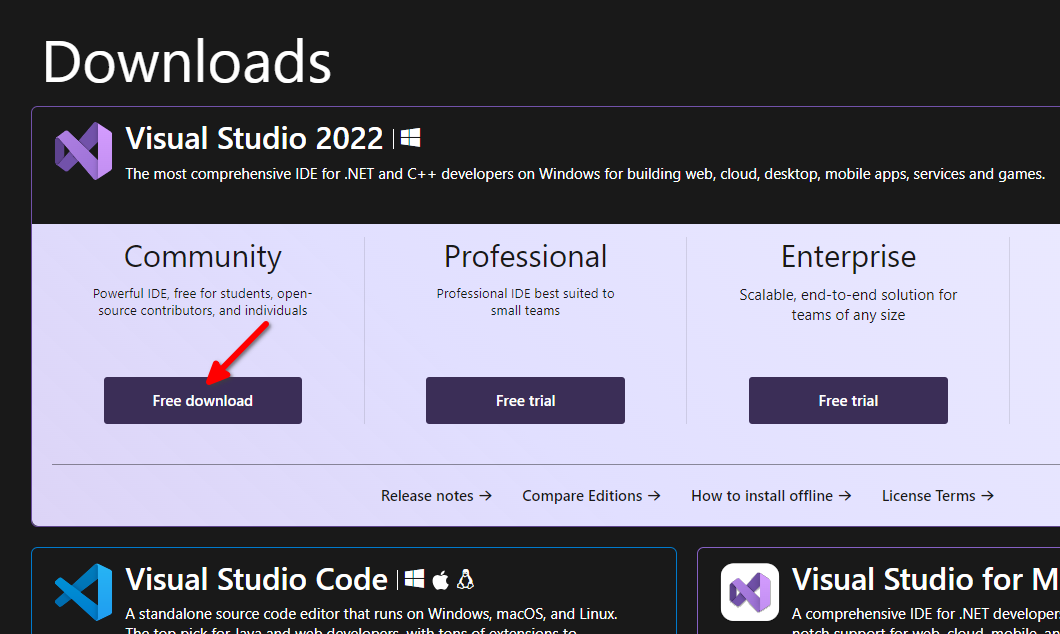
Laten we ervoor zorgen dat alles correct functioneert door cuda-voorbeelden uit de officiële repository uit te voeren. Om dit te bereiken, moeten we Visual Studio 2022 CE (Community Edition) sequentieel installeren en CUDA® Toolkit opnieuw installeren om VS-plugins te activeren. Bezoek https://visualstudio.microsoft.com/downloads/ om Visual Studio 2022 te downloaden:
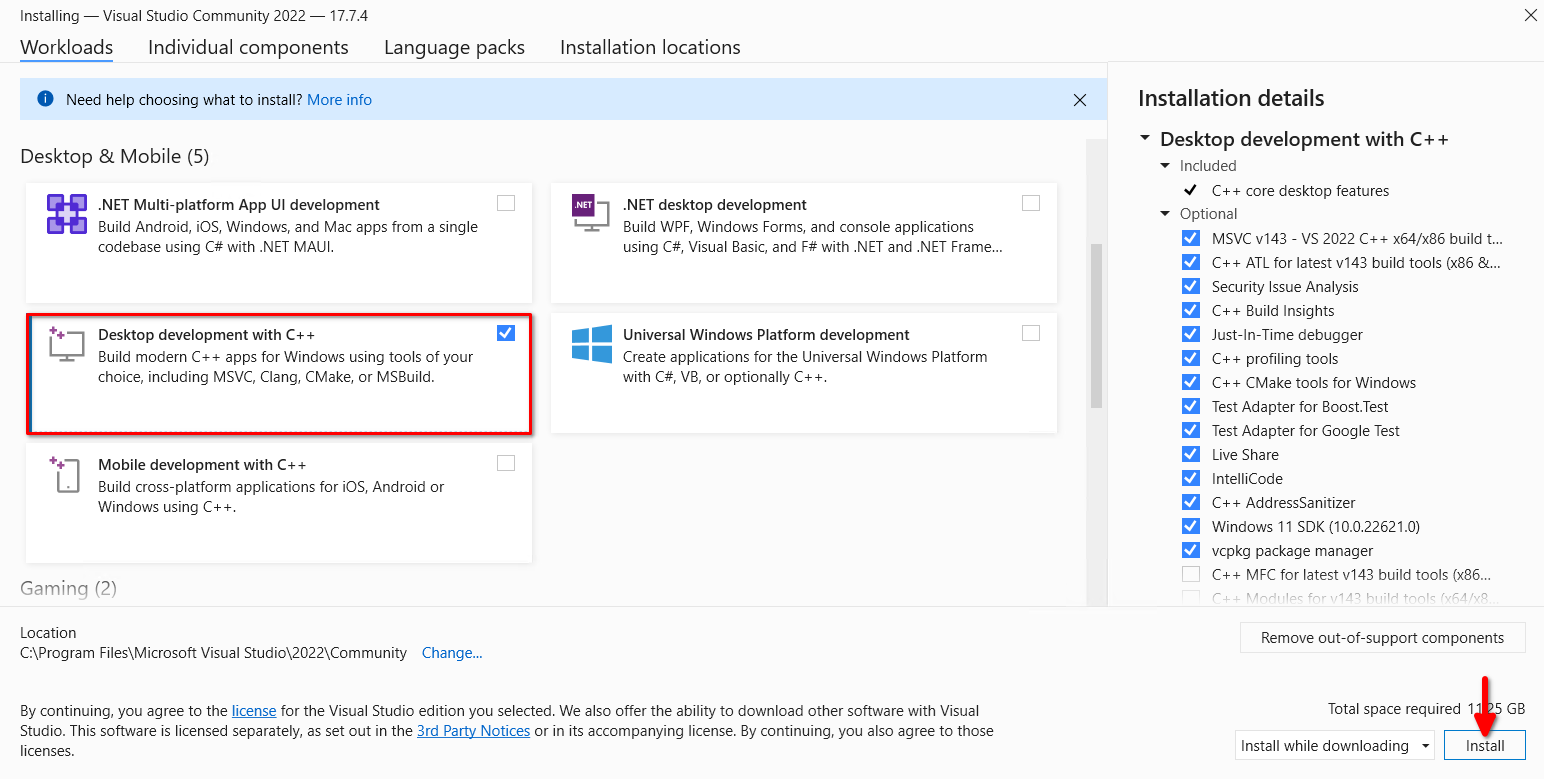
Voer het gedownloade installatieprogramma uit, vink Desktopontwikkeling met C++ aan en klik op de Installeren knop:
Voer tests uit
Installeer de CUDA-toolkit opnieuw met behulp van onze stap-voor-stap gids Installeer CUDA® Toolkit in Windows. Herstart de server en download ZIP-archief met cuda-voorbeelden. Pak het uit en open de submap Samples\1_Utilities\bandwidthTest. Dubbelklik op bandwidthTest_vs2022 en voer het uit met de sneltoets Ctrl + F5:
[CUDA Bandwidth Test] - Starting...
  Running on...

   Device 0: NVIDIA RTX A6000
   Quick Mode

   Host to Device Bandwidth, 1 Device(s)
   PINNED Memory Transfers
     Transfer Size (Bytes)        Bandwidth(GB/s)
     32000000                     6.0

   Device to Host Bandwidth, 1 Device(s)
   PINNED Memory Transfers
     Transfer Size (Bytes)        Bandwidth(GB/s)
     32000000                     6.6

   Device to Device Bandwidth, 1 Device(s)
   PINNED Memory Transfers
     Transfer Size (Bytes)        Bandwidth(GB/s)
     32000000                     637.2

  Result = PASS

  NOTE: The CUDA Samples are not meant for performance measurements. Results may vary when GPU Boost is enabled.
U kunt elk voorbeeld uitvoeren. Probeer Samples\5_Domain_Specific\p2pBandwidthLatencyTest om uw topologie en connectiviteitsmatrix te zien:
[P2P (Peer-to-Peer) GPU Bandwidth Latency Test]
    Device: 0, NVIDIA RTX A6000, pciBusID: 3, pciDeviceID: 0, pciDomainID:0
    Device: 1, NVIDIA RTX A6000, pciBusID: 4, pciDeviceID: 0, pciDomainID:0
    Device=0 CAN Access Peer Device=1
    Device=1 CAN Access Peer Device=0

    ***NOTE: In case a device doesn't have P2P access to other one, it falls back to normal memcopy procedure.
    So you can see lesser Bandwidth (GB/s) and unstable Latency (us) in those cases.

    P2P Connectivity Matrix
         D\D     0     1
         0       1     1
         1       1     1
    Unidirectional P2P=Disabled Bandwidth Matrix (GB/s)
       D\D     0      1
         0 671.38   6.06
         1   6.06 671.47
    Unidirectional P2P=Enabled Bandwidth (P2P Writes) Matrix (GB/s)
       D\D     0      1
         0 631.31  52.73
         1  52.83 673.00
    Bidirectional P2P=Disabled Bandwidth Matrix (GB/s)
       D\D     0      1
         0 645.00   8.19
         1   8.11 677.87
    Bidirectional P2P=Enabled Bandwidth Matrix (GB/s)
       D\D     0      1
         0 655.96 101.78
         1 101.70 677.92
    P2P=Disabled Latency Matrix (us)
       GPU     0      1
         0   2.20  49.07
         1  10.33   2.20

       CPU     0      1
         0   3.55   7.01
         1   6.79   3.39
    P2P=Enabled Latency (P2P Writes) Matrix (us)
       GPU     0      1
         0   2.19   1.33
         1   1.26   2.22

       CPU     0      1
         0   6.80   4.86
         1   2.09   3.02

    NOTE: The CUDA Samples are not meant for performance measurements. Results may vary when GPU Boost is enabled.
Zie ook:
Bijgewerkt: 04.01.2026
Gepubliceerd: 07.05.2024